Docs and this page
Docs / ORDERS
ORDERS guide
Read every large SPX order of a session as one order, follow any contract through the day, and read your own shorts against the same minute.
Free on every finished session. Today's ledger, live, and the live POSITIONS check are the ORDERS plan. The ORDERS product page · Markdown copy
Why it matters
A print on the SPX tape is a fill, not a decision. A four-leg condor prints as four prints, a ratio vertical as two of unequal size, and reading them one by one gets both the size and the meaning wrong. The large premium of the day is also rarely the order that changed the dealer book most.
ORDERS answers two questions: which orders built today's book, and what shape were they? and where does each of my shorts stand against this minute, by my own conditions? Each ledger row is one order rebuilt from the tape, placed against the measured book at the minute it printed. POSITIONS reads each side of your position (the put half or the call half, named by its short strike) against the market minute.
Nothing in ORDERS reads a side of an order. The side of an SPX print is close to a coin flip against the exchange's own record, and a quarter to a half of the orders carry none, so rows, highlights, rules and cards describe an order and never name a side. A position's label (TRADE, CAUTION or SKIP) is the count of your own conditions that are on, at the counts you choose: your rule applied for you, never a call by FirmTape.
Where to find it
Press ORDERS on the toolbar, or open any terminal address with ?orders. The panel docks right of the chart. POSITIONS on the toolbar opens ORDERS with it and docks to its right. Finished sessions are free (POSITIONS needs you signed in); today's live ledger, the live check and its alerts are the ORDERS plan.
| You want | Go to |
|---|---|
| The session's large orders | ORDERS on the toolbar |
| Only 0DTE orders above $1M | The filter row: 0DTE, then $1M |
| Orders summed by structure or by expiry | STRUCT or TERM in the filter row |
| The most traded contracts | BOARDS in the filter row |
| One contract's day | Click a strike on the price scale, a board row or an order's leg |
| An alert on new large orders | RULES in the panel header |
| To enter a position | POSITIONS, then + or EDIT |
| A message when a position's label changes | The POSITIONS editor, Entry & alert |
| How the check read at your entry on past days | ENTRY LOG, or LOG in ORDERS |
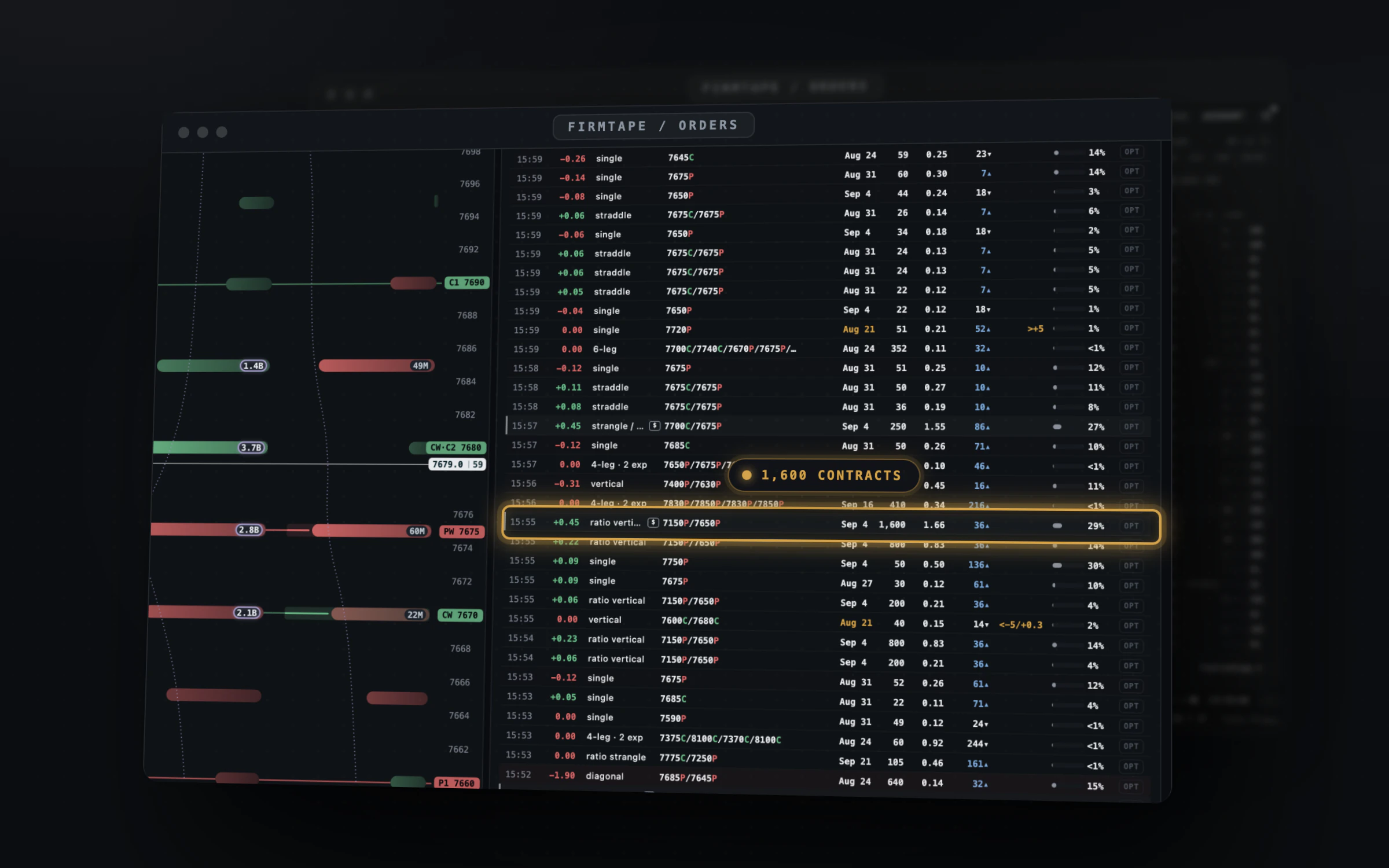
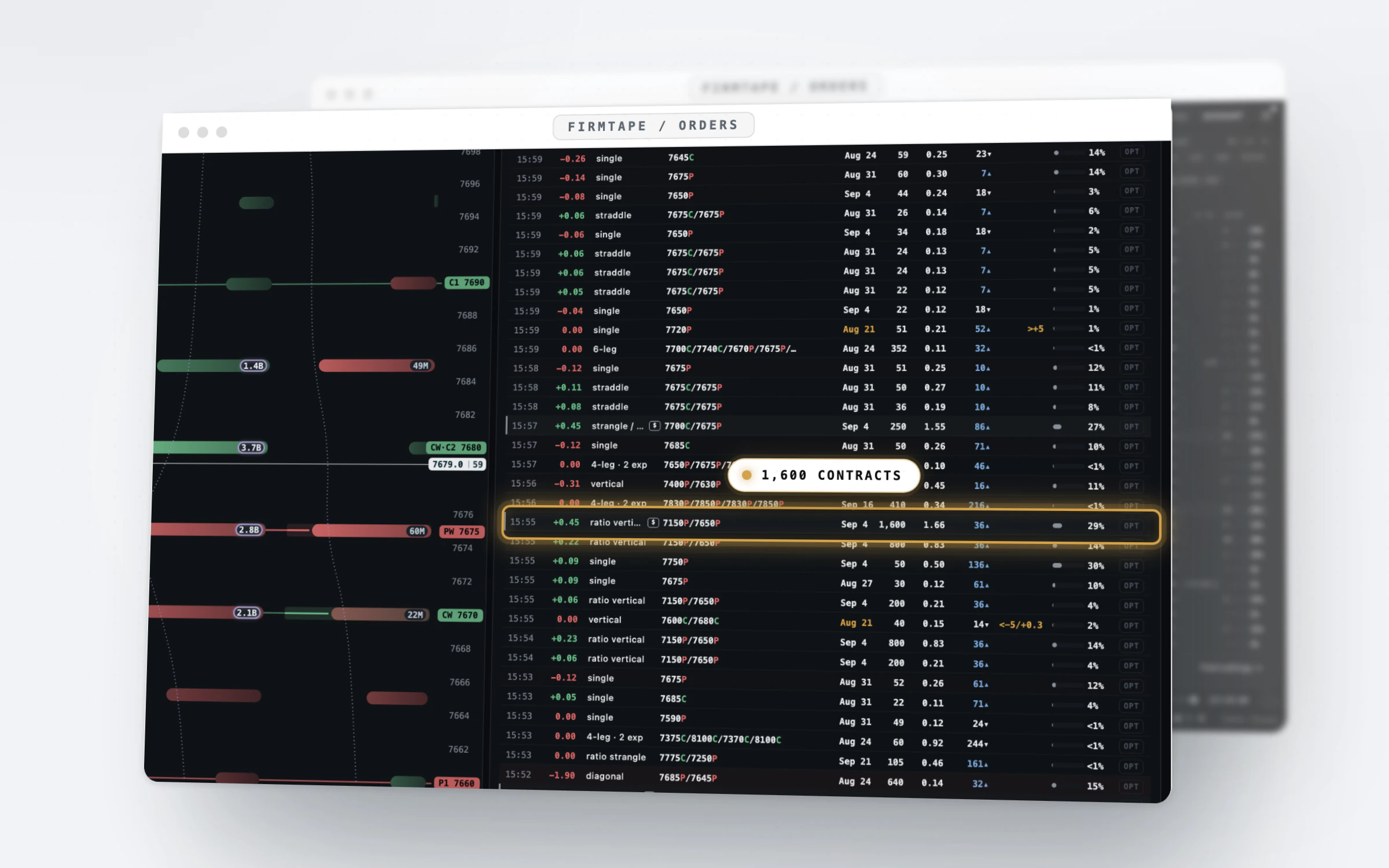
Read it in 30 seconds
- The header names the book and the sort: ORDERS · MEASURED · BY TIME means the measured book, newest first.
- Γ ADDED is the gamma the order added to the book at its minute; green added, red shed. It is size, not direction.
- VS FLIP is the order's distance from the volume flip in points; VS EM the same in expected moves when it is near enough to matter.
- In POSITIONS, each side's card gives the short, its label with the count (1/4 is one of four counted conditions on), and its distance in points and expected moves.
- On a replay the ledger and the check stop at the cursor: neither reads anything after the minute on screen.
How to use it
Watch the prints
The order ledger#
Why: the session's large orders as decisions rather than fills, each placed against the book at the minute it printed. Where: ORDERS on the toolbar, or ?orders on a terminal address; the public page is /orders. Plan: Free on every finished session; today's live ledger is the ORDERS plan.
- Press ORDERS on the toolbar; the panel docks right of the chart.
- Read a row: time, Γ ADDED, structure, contracts, expiry, size, net premium, VS FLIP, VS EM and SHARE.
- Click a row to open its detail with Open in OPTIONS; the OPT button does the same.
- Click a contract name to open its contract card.
- On a replay, move the cursor: the ledger shows the orders up to that minute.
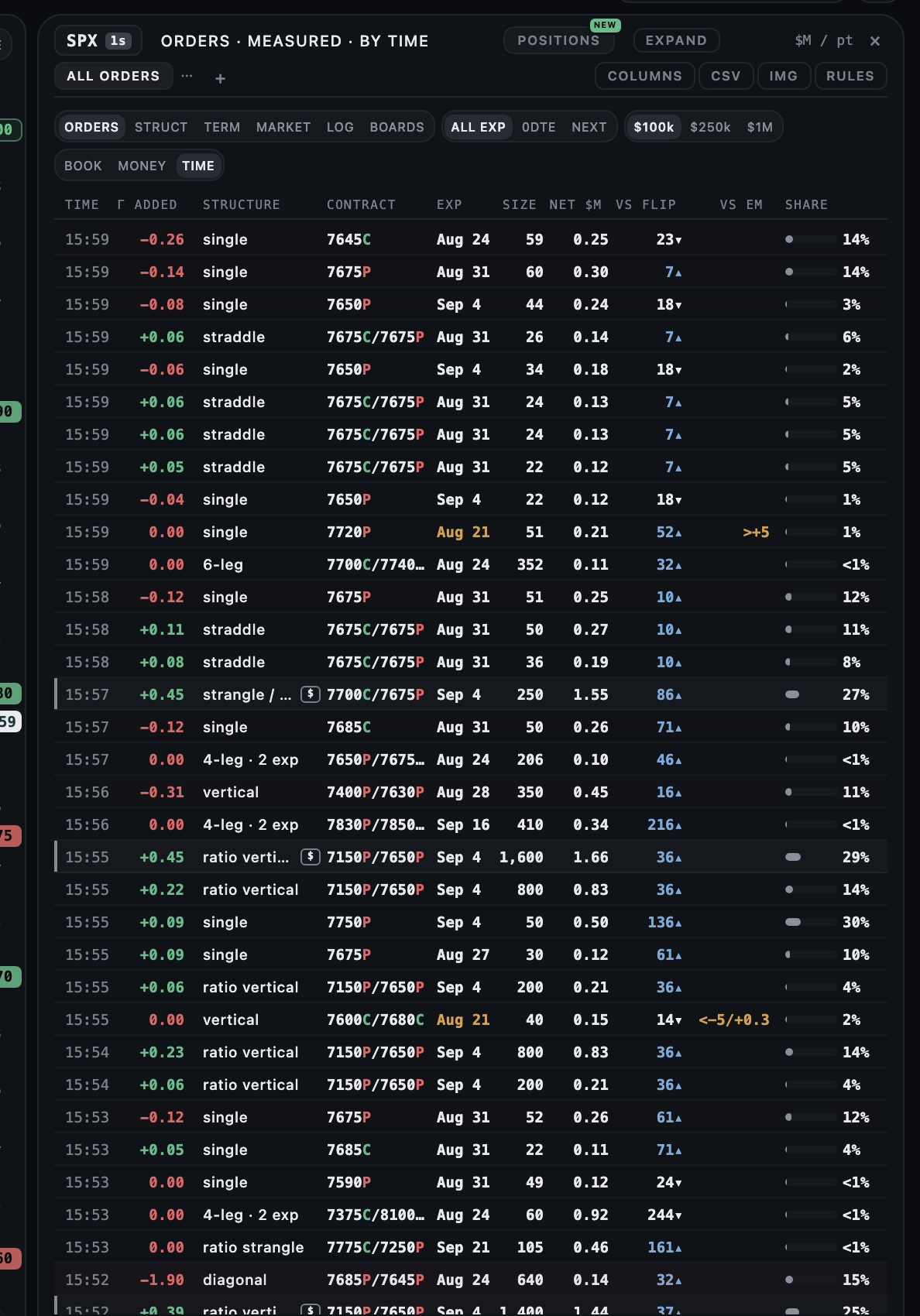
What it measures: Each row is one SPX order above $100,000 of net premium, rebuilt from the tape: prints grouped by the millisecond into one order, the structure named from its legs. Γ ADDED is the change it made to the measured dealer book at its minute; VS FLIP is its distance from the volume flip in points, VS EM in expected moves; SHARE is its share of its busiest strike.
| Control | What it does |
|---|---|
| ORDERS / STRUCT / TERM / LOG / BOARDS | The view: orders, summed by structure, by expiry, your entry log, or the contract boards |
| ALL EXP / 0DTE / NEXT | The expiry slice |
| $100k / $250k / $1M | The premium floor |
| BOOK / MONEY / TIME | The sort |
| COLUMNS, CSV, IMG, RULES | Columns and highlights, the two exports, order rules |
How to read it:
- Green gamma added means the order added gamma to the book, red that it shed some; it is a size, not a direction.
- A small $ chip on a row is a premium highlight you set; an amber expiry is today's.
- No row names a side: the side of an SPX print is close to a coin flip, and a quarter to a half of the orders carry none.
Limits: SPX only. Orders under $100,000 of net premium are not in the ledger. Finished sessions go back to January 2024.
Related: ORDERS: Sort and filters · ORDERS: The contract card · LIVE: The structure tester · LIVE: The three books
Orders on the chart#
Why: the session's ten largest orders drawn on the candles, at the minute and the price they printed. Where: LAYERS in the chart's header, the ORDERS row. Plan: Free on every finished session; today's live orders need the ORDERS plan.
- Open LAYERS and switch ORDERS to ON.
- Pick GAMMA or PREMIUM to size the circles.
- Point at a circle to read the orders in it: time, structure, expiry and gamma.
- The ORDERS button on the same row opens the ORDERS table on that day.
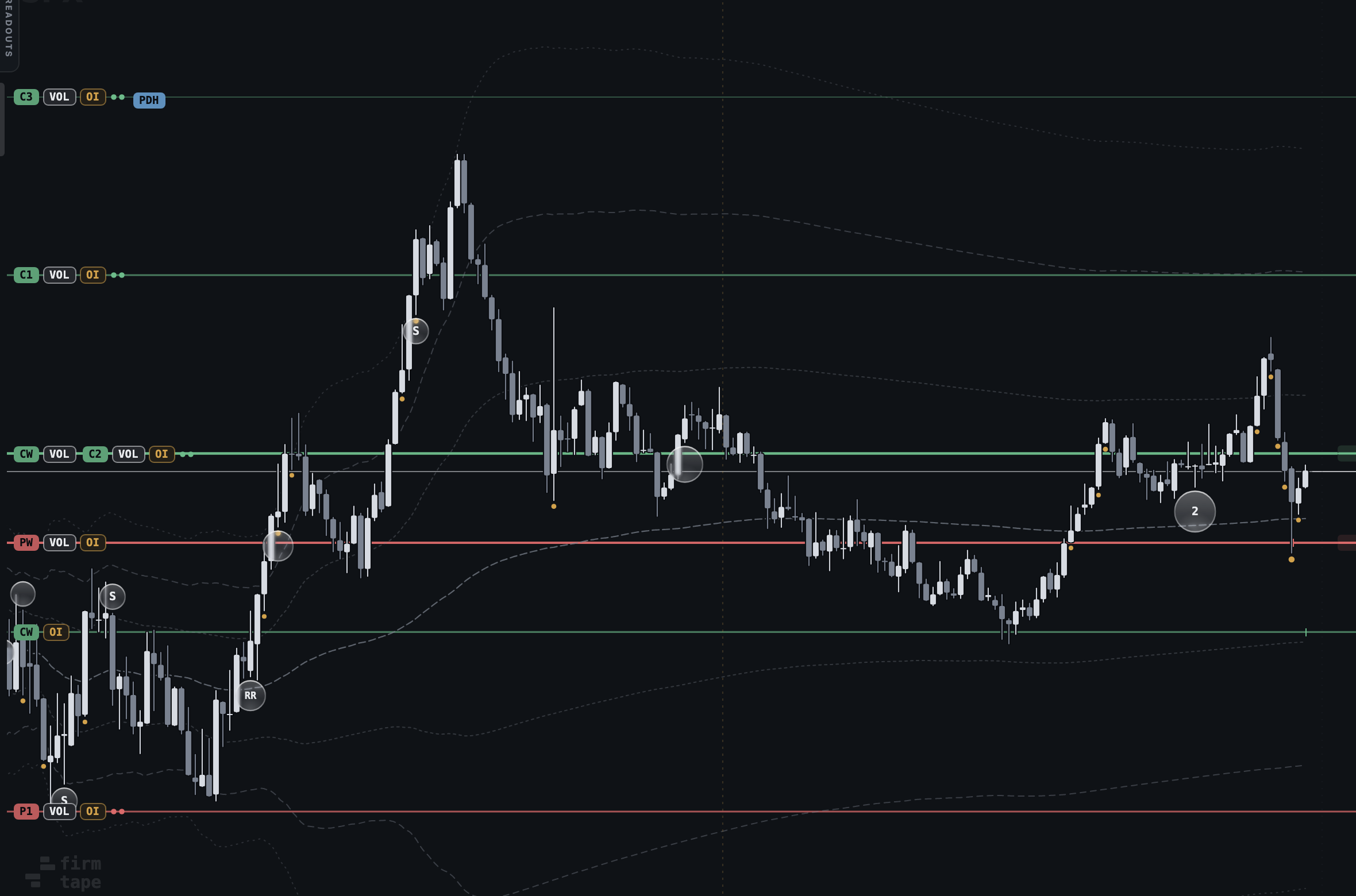
How to read it:
- A bigger circle is a larger order by the measure you picked; a number inside counts orders that share a circle.
- A letter names the structure: V vertical, D diagonal, R a ratio, S straddle, RR a strangle or risk reversal, IC iron condor, IF iron fly, C calendar, M several expiries; a single leg has none.
Limits: The ten largest of the session only.
Related: ORDERS: The order ledger · LIVE: LAYERS
Sort and filters#
Why: the slice of the ledger you trade, in the order you want to read it. Where: the filter row under the panel's tabs. Plan: Free on every finished session; live with the ORDERS plan.
- Pick ALL EXP, 0DTE or NEXT for the expiry.
- Pick a floor: $100k, $250k or $1M of net premium.
- Pick BOOK, MONEY or TIME; the header reads the sort (BY TIME, MONEY FIRST).
- Click a column head to sort by that column instead.
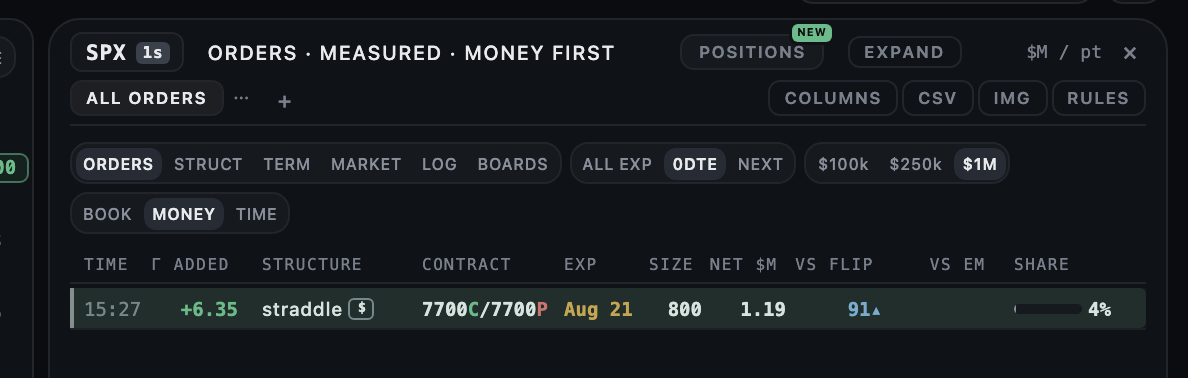
| Control | What it does |
|---|---|
| ALL EXP / 0DTE / NEXT | Every expiry, today's, or the next one |
| $100k / $250k / $1M | Orders of at least that net premium |
| BOOK | By the gamma added to the book |
| MONEY | By net premium |
| TIME | Newest first |
How to read it:
- The floors and the expiry slice apply to every view: ORDERS, STRUCT, TERM and BOARDS.
Limits: A narrow slice can be kept as its own tab.
Related: ORDERS: Saved tabs · ORDERS: STRUCT and TERM views
STRUCT and TERM views#
Why: the day's orders summed, so the mix of structures and the term structure of the size read at a glance. Where: STRUCT or TERM in the filter row. Plan: Free on every finished session; live with the ORDERS plan.
- Press STRUCT: one row per structure with its orders, net premium, contracts and share of the slice.
- Press TERM: the same slice by expiry bucket, 0DTE, this week, this month and later.
- Combine either with the expiry and $ floors; the footer counts the orders in the slice.
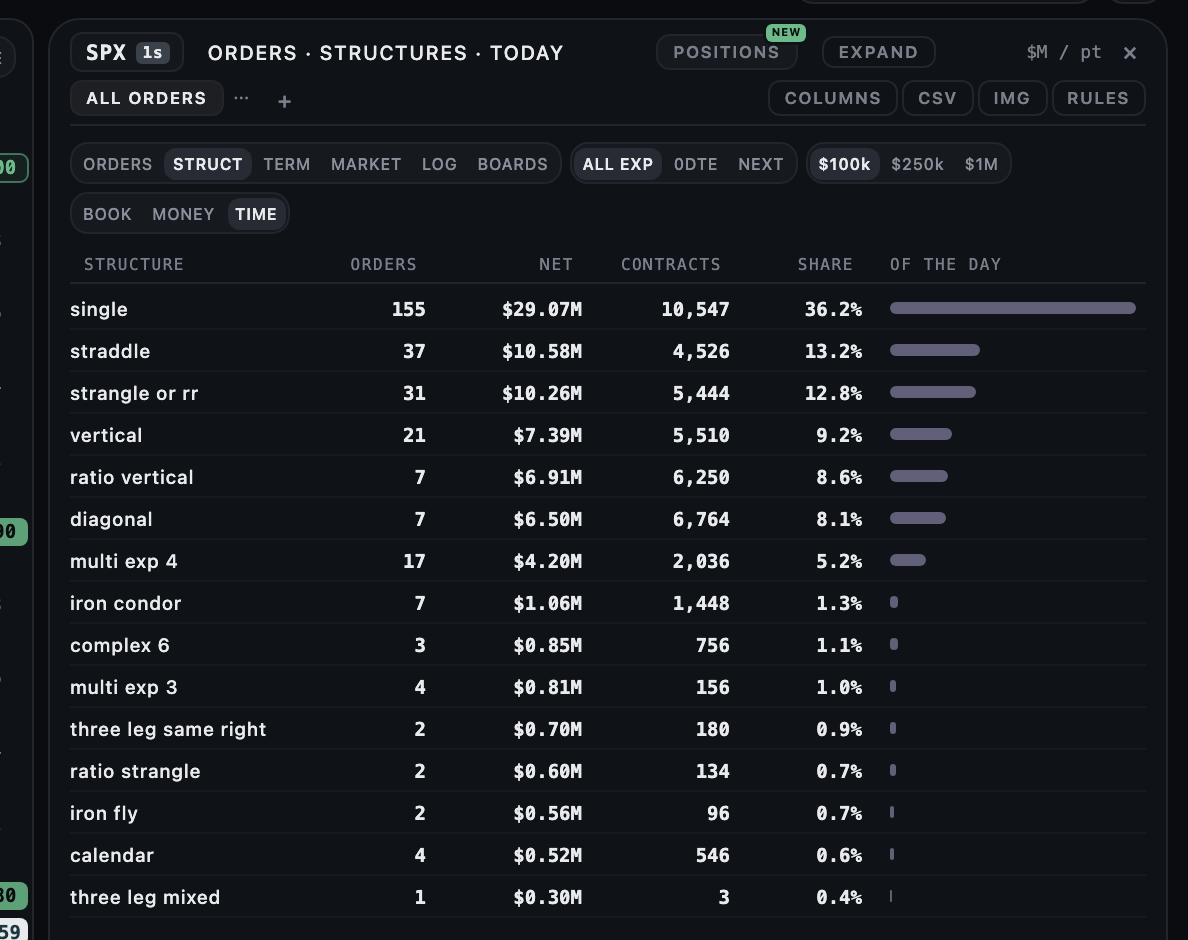
How to read it:
- The bar is the structure's share of the filtered slice, not of the whole market.
Limits: SPX orders above the ledger's floor only.
Related: ORDERS: Sort and filters · ORDERS: The order ledger
Saved tabs#
Why: switch between the slices you read every day without setting them again. Where: the tabs row at the top of the panel. Plan: Free.
- Press + beside the tabs; a new tab opens with its name field ready to type.
- Set the view, the slices, the sort, the columns and the highlights.
- Double-click a tab, or open its menu (the dots), to Rename, Duplicate or Delete it.
- Switch tabs: each one restores everything it was set to.
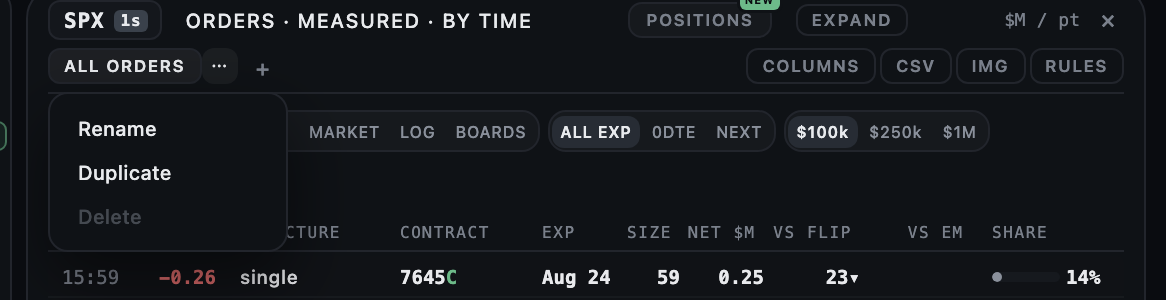
Limits: One to twelve tabs, kept in this browser.
Related: ORDERS: Columns and highlights · ORDERS: Sort and filters
Columns and highlights#
Why: the columns you read in the order you read them, and the rows you care about marked. Where: COLUMNS in the panel header. Plan: Free.
- Press COLUMNS. Tick a column to show it; the arrows move it; RESET restores the default order.
- Under HIGHLIGHT, mark orders larger than their strike's open interest (OI), expiring today (0D) or of at least a net premium ($: $0.5M, $1M, $2.5M or $5M).
- The tag appears on the row.
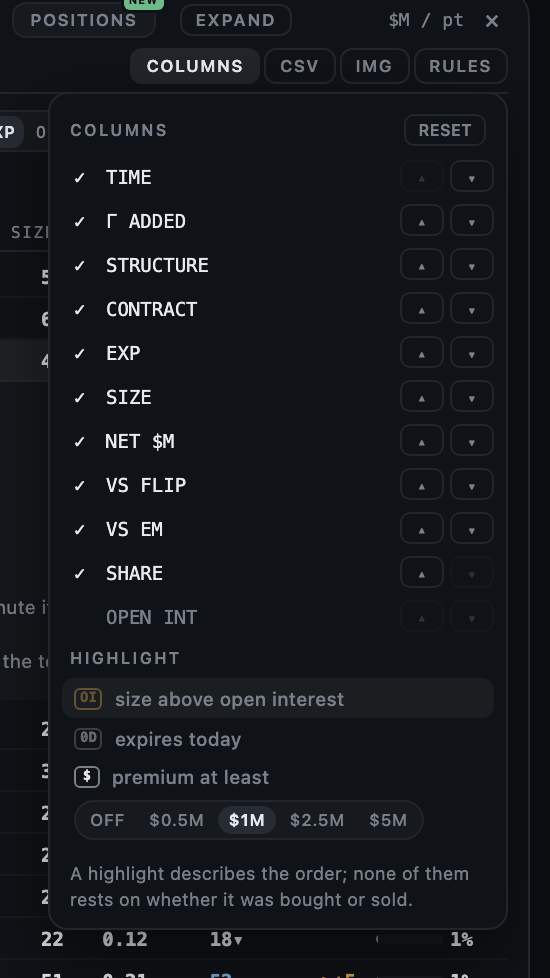
How to read it:
- A highlight describes the order only; none of them rests on the side of the order.
Related: ORDERS: Saved tabs · ORDERS: CSV and IMG
CSV and IMG#
Why: the exact slice you are reading, as a file or a picture. Where: CSV and IMG in the panel header. Plan: Free on every finished session; live with the ORDERS plan.
- Press CSV to download the active tab as
orders-<day>.csv, in its sort and columns. - Press IMG to copy the table to the clipboard as a picture.
How to read it:
- Both use exactly what the tab shows: view, filters and columns.
Limits: The file holds FirmTape's own fields only, never a vendor's option price or quote.
Related: ORDERS: Saved tabs · ORDERS: Orders API and MCP
EXPAND#
Why: the full ledger without a cut column or a shortened contract list. Where: EXPAND in the panel header. Plan: Free.
- Press EXPAND; press it again for the normal width.
- In the wide panel the OPT button shows on every row and long contract lists are no longer cut.
Related: ORDERS: The order ledger
A link that opens ORDERS#
Why: send someone straight to a session's orders. Where: the address bar, or any link you write. Plan: Free.
- Add
?ordersto a terminal address, for example/replay/2026-08-21?orders. - Combine it with the other switches of the address, such as
?t=for the minute.
Related: REPLAY: Share a link to a view · ORDERS: The order ledger
Order rules#
Why: an alert when a new order in today's live ledger matches what you look for. Where: RULES in the panel header. Plan: ORDERS.
- Press RULES, then + NEW RULE, and give it a name.
- Pick PREMIUM AT LEAST ($100k to $5M), a STRUCTURE (any, or one or more shapes) and an EXPIRY (any, this week, 0DTE).
- Optionally pick NEAR A LEVEL: one of its strikes within 5, 10, 25 or 50 points of the flip or a wall.
- Press SAVE. Each rule can be switched on or off, edited or removed.
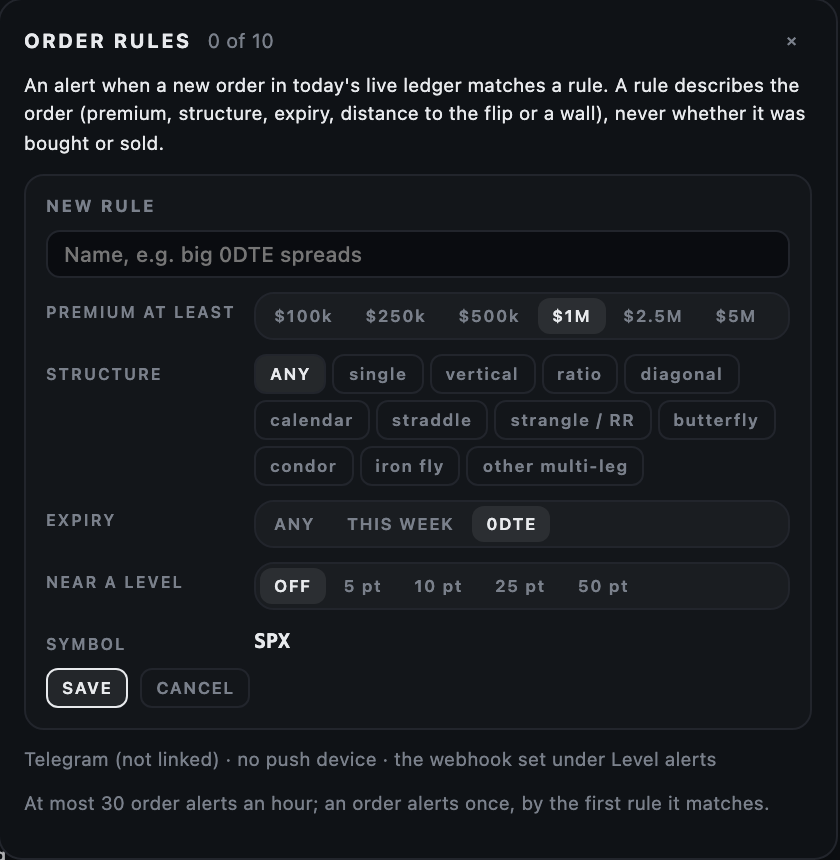
What it measures: A rule describes the order: its premium, structure, expiry and distance to a level. It never reads the side, because the side of an SPX print is close to a coin flip.
How to read it:
- A match is sent once, by the first rule it matches.
Limits: Up to ten rules. At most 30 order alerts an hour. They go where level alerts go (Telegram, push, the webhook, as type order).
Developer reference: /docs/developers/live/events/order
Related: LIVE: Where alerts go · LIVE: Webhooks · ORDERS: The order ledger
Read a contract
Contract boards#
Why: see which single contracts the session traded most, over one session or seven. Where: BOARDS in the ORDERS filter row; each finished day's boards are also a page at /spx/most-active-options. Plan: Free on every finished session; today's boards with the ORDERS plan.
- Press BOARDS.
- Pick the ranking: TOP VOLUME, TOP PREMIUM, TOP OPEN INT or UNUSUAL VOL/OI.
- Pick the window: 1D (one session) or 7D (seven sessions).
- Read the head line: calls, puts, the put-call ratio and the total.
- Click a row to open its contract card.
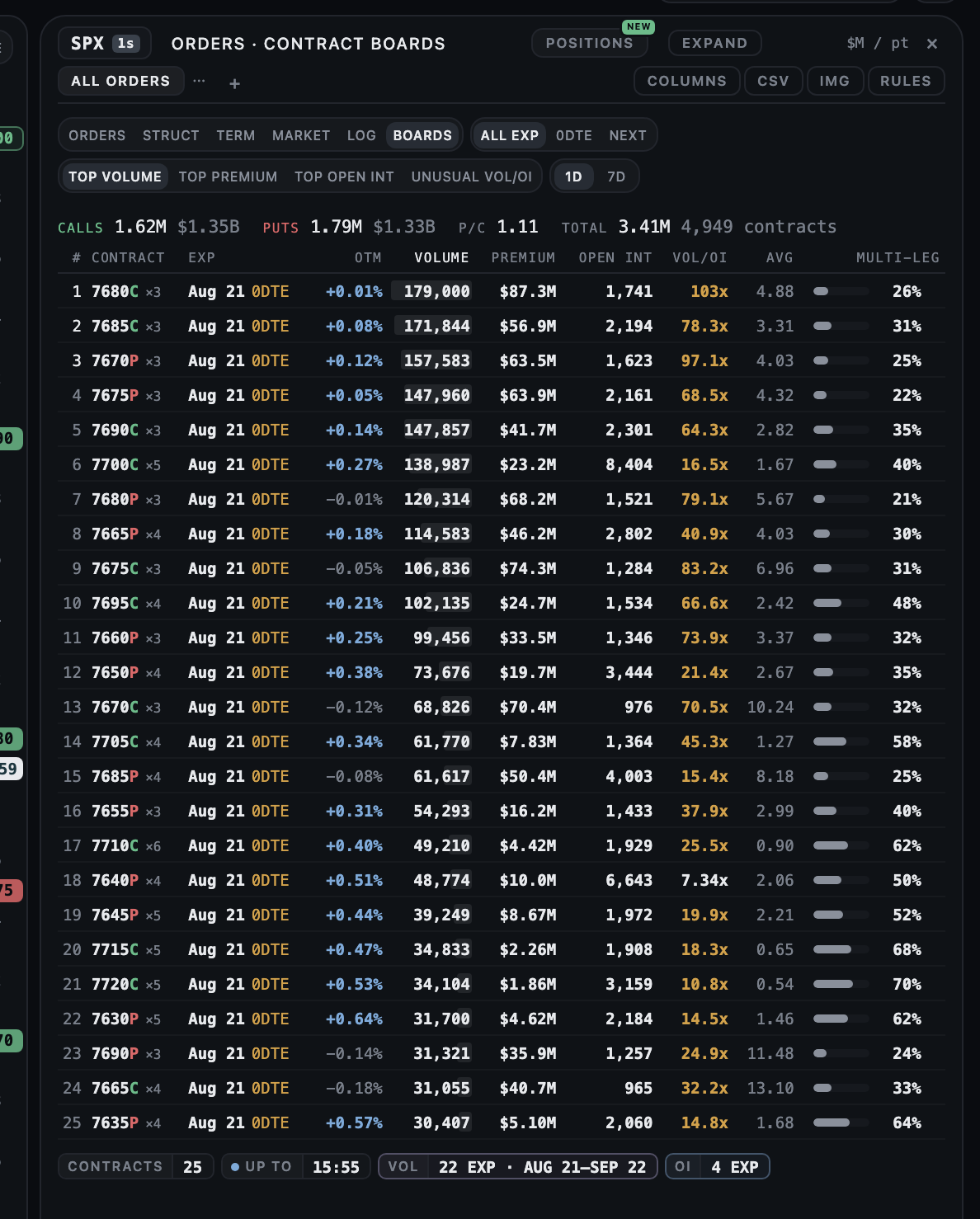
What it measures: Each board ranks contracts over the window. Vol/OI is the window's volume over the open interest at its start; 7D sums seven sessions and divides by the open interest at the first one's morning.
| Control | What it does |
|---|---|
| TOP VOLUME | Contracts by volume |
| TOP PREMIUM | Contracts by premium traded |
| TOP OPEN INT | Contracts by morning open interest |
| UNUSUAL VOL/OI | Contracts by volume over open interest |
| 1D / 7D | One session or seven |
How to read it:
- A high Vol/OI says the day's trading was large against the positions that existed; it does not say positions were opened.
- The multi-leg share says how much of the contract traded inside multi-leg orders; read the structure, not the leg.
Limits: Nothing on a board names a side, or whether a position was opened or closed. Today's boards are rebuilt every five minutes from the tape so far; the evening's build replaces them at full width.
Related: ORDERS: The contract card · LIVE: Ladder columns · Open interest and volume
The contract card#
Why: one contract's day in one place: how much traded, when, at what average price, inside which structures, and in which large orders. Where: click a strike on the price scale, right-click a ladder row and pick Contract card, or click a board row or an order's leg. Plan: Free on every finished session; live with the ORDERS plan.
- Click a strike on the price scale: the card opens beside it as a popover. C and P switch the right.
- Read the numbers: volume and prints, morning open interest, Vol/OI, average price, premium traded and the share in multi-leg orders.
- Read VOLUME PER 5 MINUTES: single-leg and multi-leg bars with the average fill price as a line; hover a bar for its five minutes.
- Open the tabs: STRUCTURES, LARGEST ORDERS and SESSIONS.
- In LARGEST ORDERS, press the play button on a row to move the replay to that second.
- Press Expand for the drawer, one scrolling card over the chart's right edge beside ORDERS.
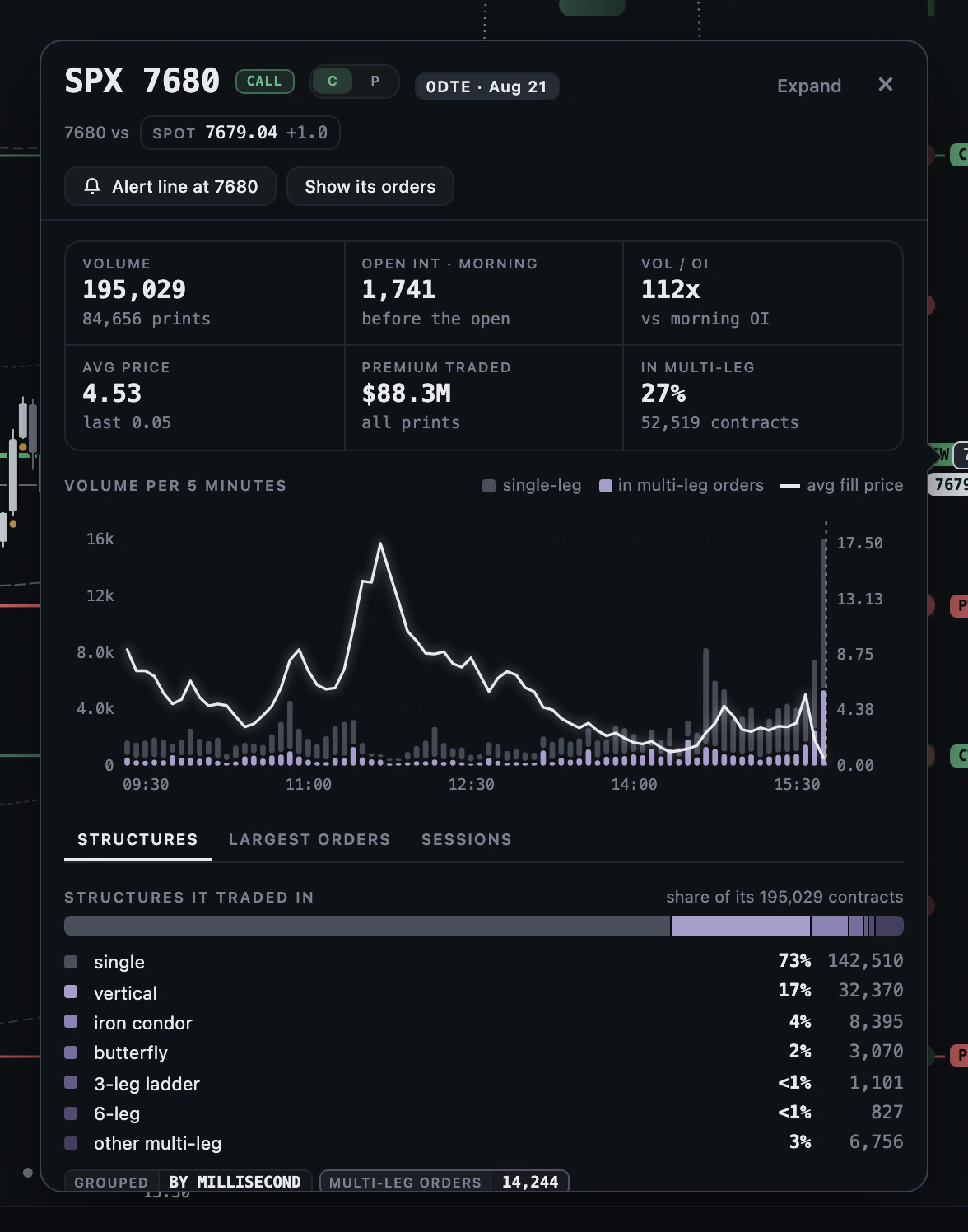
What it measures: Volume and prints are the session's; open interest is the morning count, before the open. Structures group multi-leg prints by the millisecond and name them by shape, as shares of the contract's volume. The change in open interest on SESSIONS is the next morning's count minus this one.
| Control | What it does |
|---|---|
| C / P | The call or the put at the same strike |
| STRUCTURES | The shapes it traded in, as shares of its contracts |
| LARGEST ORDERS | The largest ledger orders that touched it, each with a button to the replay at that second |
| SESSIONS | Its last sessions: volume, open interest, change in open interest and last price |
| Expand | The card as a drawer beside ORDERS |
How to read it:
- A high Vol/OI says the session's trading was large against the morning's positions; it does not say positions were opened.
- A large multi-leg share means the contract mostly traded as a leg; read the structure, not the leg.
- The average fill price line is a price, not a direction.
Limits: Nothing on the card names a side, or whether a position was opened or closed. A session's change in open interest is known the next morning.
Related: The contract card, the full page · ORDERS: Contract boards · ORDERS: Card actions: alert line and its orders · ORDERS: The order ledger · REPLAY: The playback bar
Card actions: alert line and its orders#
Why: from reading a contract to watching it in one press. Where: the two buttons under the card's title. Plan: Alert line: LIVE. Show its orders: free on finished sessions, live with the ORDERS plan.
- Press Alert line at <strike>: the button turns to Alert line set and the line appears on the chart with its bell.
- Press Show its orders: the ledger gains a chip with the contract (for example 7680C Aug 21) and lists only the orders that touched it.
- Press the chip's x to remove the filter.
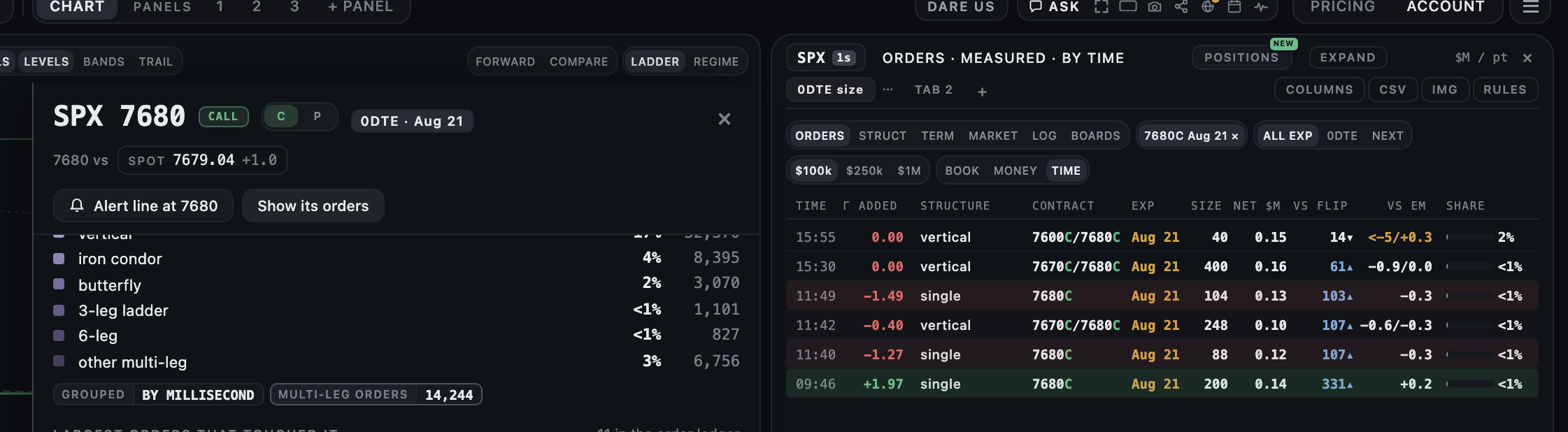
Limits: On a replay only the orders up to the cursor show.
Related: LIVE: Alert lines · ORDERS: The contract card
In your code
Orders API and MCP#
Why: the same rows the panel draws, as data, with the fields the panel has to abbreviate. Where: keys under Account, Orders; the reference is at /docs/developers/orders. Plan: The Orders API or Team plan.
- Take the API or Team plan on /pricing#orders.
- Create a key under Account, Orders; it is shown once.
- Follow the reference to ask for a dated session or the newest one, or point an assistant at the MCP server.
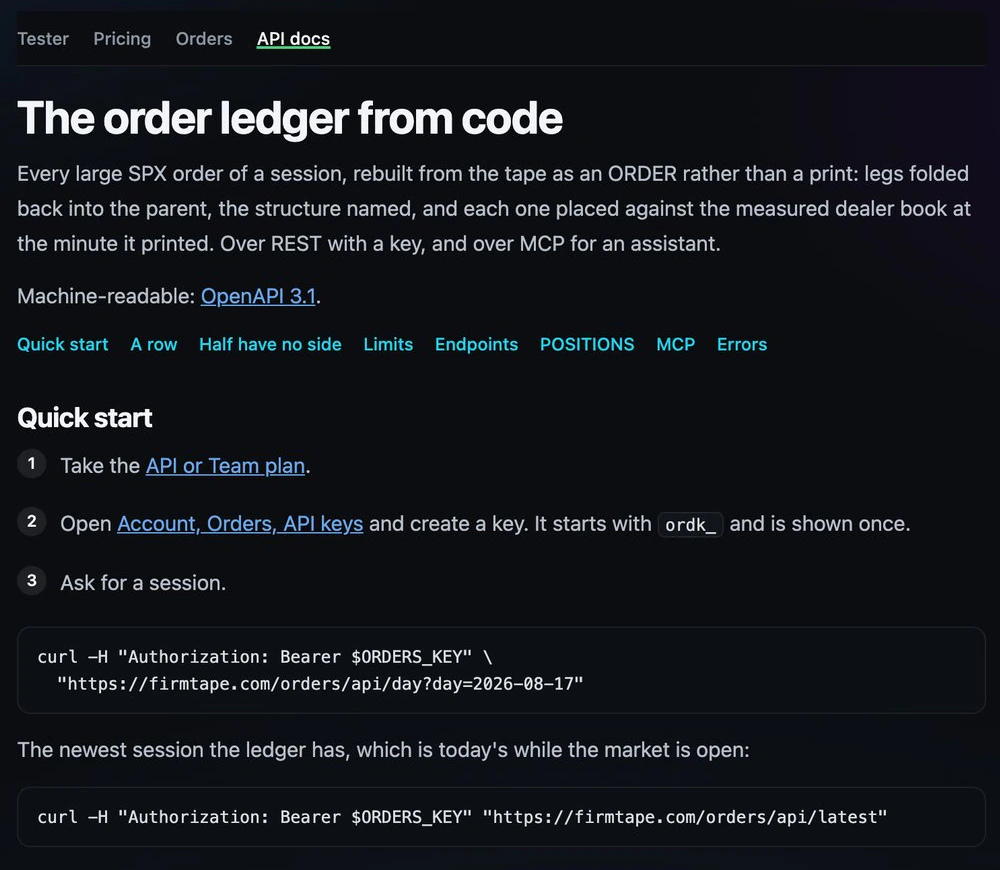
The rows carry every field the panel shows, plus per-leg detail. Half of them carry no side, and the reference says why. POSITIONS checks and entry logs are available the same way.
Developer reference: /docs/developers/orders
Related: ORDERS: The order ledger · ORDERS: CSV and IMG · ORDERS: Entry log · REPLAY: MCP server
POSITIONS: your own structure, checked
POSITIONS panel and editor#
Why: your shorts read against the market minute, side by side, with the large orders at your strikes one panel away. Where: POSITIONS on the toolbar (ORDERS opens with it), then + or EDIT. Plan: Free signed in on finished sessions; the live day with the ORDERS plan.
- Press POSITIONS on the toolbar, then + for a new position or EDIT for the one shown.
- Pick a structure: IRON CONDOR, STRANGLE, PUT SPREAD or CALL SPREAD.
- Set the strikes with 1 EM OUT, LAST USED or TYPE STRIKES (low to high); the line under them gives each short's distance from spot in expected moves.
- Set ENTRY (between 09:30 and 16:00) and ALERT FROM, and where the alerts go.
- Switch your conditions on or off with their thresholds, then SAVE POSITION.
- Read each side's label and its reason; 15m, 30m and 60m set the window the orders near your shorts are counted in, 1x and 2x the panel's width.
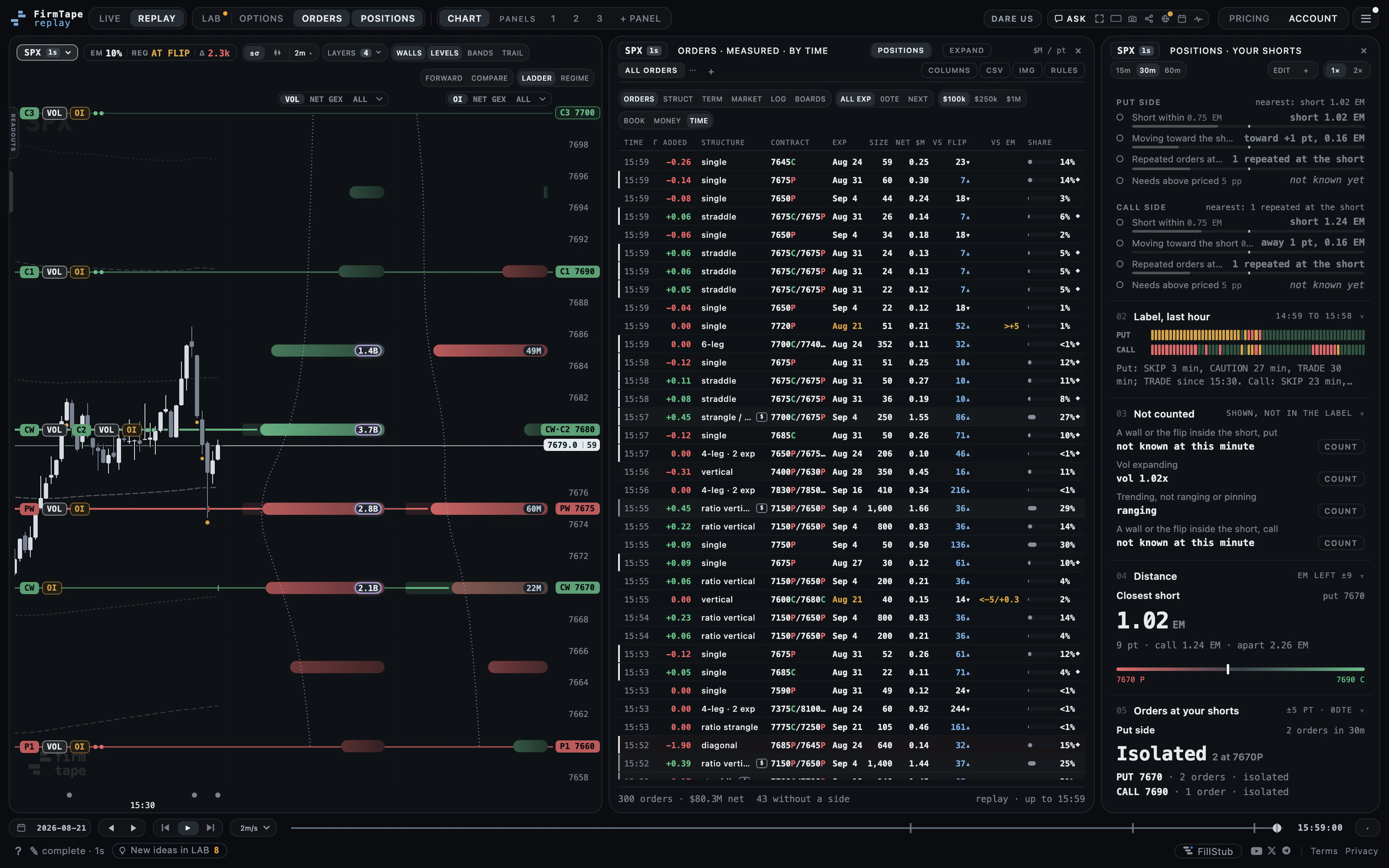
What it measures: The check reads each side against the market minute, the same for every account: the short's distance in points and in expected moves left to the close, the large orders near it, the levels inside or outside it, the move toward it, and realised against implied volatility. A side's label counts the counted conditions that are on: TRADE below your CAUTION count, CAUTION from it, SKIP from your SKIP count (two and three by default).
| Control | What it does |
|---|---|
| IRON CONDOR / STRANGLE / PUT SPREAD / CALL SPREAD | The structure |
| 1 EM OUT / LAST USED / TYPE STRIKES | How the strikes are set |
| ENTRY, ALERT FROM | The entry minute and the minute of the opening read (ten minutes before the entry by default) |
| TELEGRAM / EMAIL / WEBHOOK / OFF | Where the opening read and label changes go |
| 15m / 30m / 60m | The window the orders near your shorts are counted in |
| 1x / 2x | The panel's width |
| ENTRY LOG, COPY AS JSON | The check on past sessions, and the check as data |
How to read it:
- A label is a count of your own conditions, at the threshold you chose. It is not a forecast and not an instruction.
- The reason names the conditions that are on, and the one that is off but nearest its threshold.
- A condition whose input is not known at that minute reads not known yet and never counts.
Limits: SPX only, 0DTE structures: condor, strangle, put spread or call spread. Up to five positions an account. A position is a set of strikes you typed, not an account at a broker.
Developer reference: /docs/developers/orders/positions
Related: POSITIONS panel and editor, the full page · ORDERS: Conditions and the not counted list · ORDERS: Opening read and label changes · ORDERS: Entry log · ORDERS: The order ledger
Conditions and the not counted list#
Why: the label is yours: each test has the threshold you choose, and the ones you do not count stay visible. Where: POSITIONS, section 01 Your conditions and 03 Not counted; thresholds in the editor. Plan: Free signed in on finished sessions; the live day with the ORDERS plan.
- Read each side's counted conditions with the value now and your threshold.
- The tick on each bar is your threshold; a filled dot marks a condition that is on.
- Under 03 Not counted, read the conditions shown but not counted, each with where it stands now.
- Press COUNT beside one to add it to the label, or switch it in the editor.
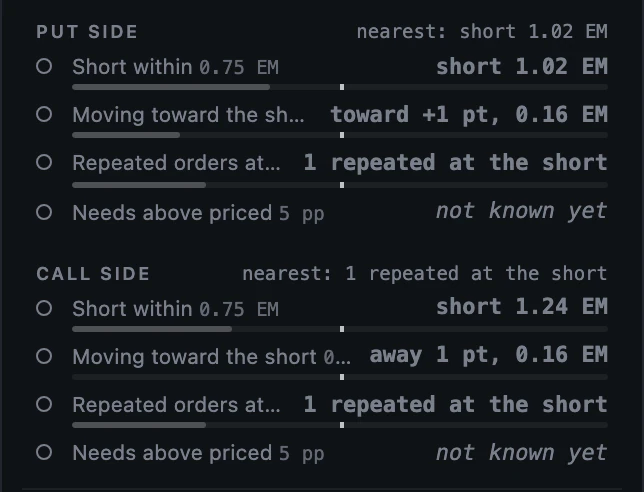
| Condition | What it tests (default) |
|---|---|
| Short within | The short's distance from spot, in expected moves (0.75 EM; counted) |
| Moving toward the short | Price's move toward the short over the window, in expected moves (0.4 EM; counted) |
| Repeated orders at the short | Large orders with a leg within 5 points of the short in the last 30 minutes (2 orders; counted) |
| Needs above priced | How far the break-even win rate the side needs sits above the chance the market prices, in points (5 pp; counted) |
| A wall or the flip inside the short | A level between spot and the short (not counted) |
| Vol expanding | Realised against implied volatility (1.2x; not counted) |
| Trending, not ranging or pinning | The session's range state (not counted) |
How to read it:
- An uncounted condition is still read and shown in the reason's words; it never moves the label until you count it.
- A condition that cannot be measured at that minute reads not known yet and is never counted as on.
Limits: Needs above priced uses the same formulas as OPTIONS, at the ATM vol of the minute.
Related: ORDERS: POSITIONS panel and editor · LIVE: The expected move · LIVE: Against the book
Label track#
Why: whether a side's count has been steady or keeps changing. Where: POSITIONS, section 02 Label, last hour. Plan: Free signed in on finished sessions; the live day with the ORDERS plan.
- Read the PUT and CALL rows: one cell per minute, coloured by the label.
- Read the sentence under them: the minutes at each label and since when the current one holds.

How to read it:
- Colour is the label of your own count at that minute; it says nothing about the next minute.
Related: ORDERS: POSITIONS panel and editor
Opening read and label changes#
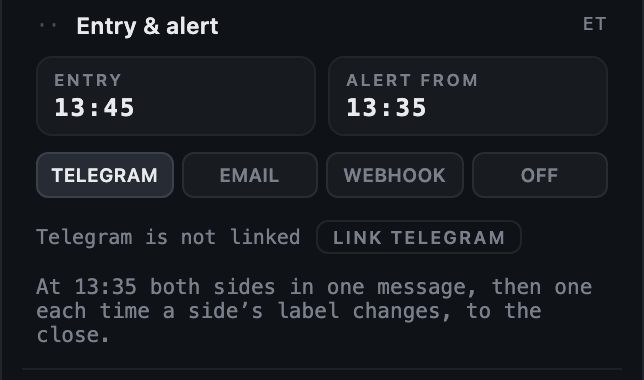
Why: the first read of the day at your time, then one message only when something changes. Where: POSITIONS editor, Entry & alert. Plan: The live day with the ORDERS plan.
- Set ALERT FROM (ten minutes before the entry by default); the line under it says what will be sent.
- Pick TELEGRAM, EMAIL or WEBHOOK (Telegram must be linked in the account), or OFF.
- At that minute every side's label and reason arrive in one message, sent whether or not anything changed: the opening read.
- After it, one message each time a side's label changes, to the close.
How to read it:
- A message reports your conditions' count and its reason; it is not an instruction.
Limits: Live sessions only, between 09:30 and 16:00 New York. A label that stays put sends nothing, and each label is sent once a day per side.
Related: ORDERS: The POSITIONS webhook · LIVE: Where alerts go · ORDERS: POSITIONS panel and editor
The POSITIONS webhook#
Why: the opening read and every label change as data your own code can act on. Where: POSITIONS editor, Entry & alert, WEBHOOK. Plan: The Orders API or Team plan.
- Pick WEBHOOK and paste an
https://address. - Copy the signing secret shown under it and keep it on your server.
- Press SEND TEST to post a test message to the address.
What it measures: The body is the same check the Orders API returns, so one parser serves both, signed as the level alerts' webhook is: HMAC-SHA256 over the timestamp header, a dot and the raw body.
Limits: Without the Orders API or Team plan the WEBHOOK channel is locked. The address must be public.
Developer reference: /docs/developers/orders/events
Related: ORDERS: Opening read and label changes · LIVE: Webhooks · ORDERS: Orders API and MCP
Entry log#
Why: how your conditions read at your entry minute day after day, recorded or replayed. Where: ENTRY LOG in POSITIONS, or LOG in the ORDERS filter row. Plan: Free signed in; the live day's record with the ORDERS plan.
- Press ENTRY LOG (or LOG in ORDERS). With no saved position it says NO POSITION YET.
- Read each day's entry record: the label of the put and call side at entry, the reason, how close price came to each short after entry and where it stood at the close.
- Read the tallies of days by the label at entry, and how many kept both shorts outside at the close.
- DOWNLOAD CSV or COPY AS JSON to keep the table.
What it measures: RECORDED rows are kept exactly as they were on live days; REPLAYED rows are worked out later from the archive, with every strike moved by how far the price at the entry minute stood from the newest session's, because a 0DTE strike is set from the day's price. Either way the check reads nothing after the entry minute; only a recorded row proves you saw it then. Points only.
How to read it:
- The tallies count your own conditions' labels at entry and what price did after; they are a record, not a forecast of the next session.
Limits: Recent sessions only.
Related: ORDERS: POSITIONS panel and editor · ORDERS: Orders API and MCP
Add to ORDERS
| Add-on | What it adds |
|---|---|
| Orders API | The same ledger as JSON over REST and an MCP server, with per-leg data, an OpenAPI document, the POSITIONS API and its webhooks |
| Orders Team | Five seats with their own logins and keys, one shared call budget for REST and MCP, and one invoice for the desk |
Use it with other tools
| Tool | How it pairs |
|---|---|
| LIVE: The structure tester | Open any order's strikes and rights in OPTIONS with OPT or Open in OPTIONS. |
| LIVE: Walls and levels | Read an order's distance from the flip against the walls and levels drawn on the chart. |
| LIVE: Where alerts go | Order rules and POSITIONS alerts go to the same Telegram chat, phone and webhook as level alerts. |
| REPLAY: The playback bar | Scrub a finished session and the ledger and the check follow the cursor. |
| LIVE: Slash commands | /orders in ASK lists the session's largest orders at once. |
Ask about it
Open ASK beside the chart and try:
| You want | Ask |
|---|---|
| The largest orders of the session | /orders |
| How far is the biggest 0DTE order from the flip? | Which of today's largest orders sits closest to the flip? |
| What did the book do around 14:00? | What orders printed between 13:45 and 14:15, and what did they add to the book? |
Good to know
- The ledger lists orders above $100,000 of net premium; smaller ones are not in it.
- Structures are grouped by the millisecond and named by shape: single, vertical, ratio, diagonal, calendar, straddle, strangle, butterfly, condor, iron fly and other multi-leg orders.
- Gamma added reads the measured book; the distance from the flip reads the volume flip, the level the chart draws by default.
- The contract boards and cards count volume, premium and open interest only: no price direction, no side.
- POSITIONS distances are in SPX points and in expected moves; nothing is in dollars of profit or loss.
- Four conditions are counted by default (short within, moving toward the short, repeated orders at the short, needs above priced); three more are shown but not counted until you count them.
If something looks wrong
| You see | Do this |
|---|---|
| Rows stop before the close on a replay | The ledger stops at the cursor; press End to move the cursor to the close. |
| Today's ledger shows a plate instead of rows | Today's live ledger is the ORDERS plan; every finished session stays free. |
| A filter shows no rows | The expiry and premium floors apply to every view; widen them, or check the chip of a contract filter in the filter row. |
| A contract's change in open interest is empty | It is the next morning's count minus this one, so a session's change is known a day later. |
| An order alert did not arrive | At most 30 order alerts an hour are sent, and each order alerts once, by the first rule it matches. |
| POSITIONS asks you to sign in | Positions are kept on your account; sign in, and finished sessions are free. |
| A condition reads not known yet | Its input is not available at that minute (early in the session, for example); it does not count until it is. |
| The POSITIONS webhook channel is locked | Webhooks are on the Orders API and Team add-ons. |
Glossary
| Term | Meaning |
|---|---|
| order ledger | Every large SPX order of a session rebuilt from the tape as one order, placed against the book at its minute. |
| measured book | The dealer book signed print by print from the tape and its quotes. |
| contract boards | Contracts ranked by volume, premium, open interest or Vol/OI over one session (1D) or seven (7D). |
| contract card | One contract's session: its volume, open interest, premium, structures, largest orders and recent sessions. |
| Vol/OI | The window's volume over the open interest at its start. |
| position | One short options position you follow through a session: an iron condor, a strangle, a put spread or a call spread, by its strikes, with an entry time. |
| side | The put half or the call half of a position, named by its short strike. Every reading and every label is per side. |
| condition | One test you set on a side, with its own threshold; only counted conditions move the label. |
| label | TRADE, CAUTION or SKIP: how many counted conditions are on, at counts you choose. Your rule, never a call by FirmTape. |
| expected move | The ATM 0DTE straddle as a range: what the market charges for the rest of the session. |
Every reading here is a measurement of dealer positioning, never a forecast or a trade call.