Features / ORDERS
See the orders that moved the SPX book, and read your own strikes against them.
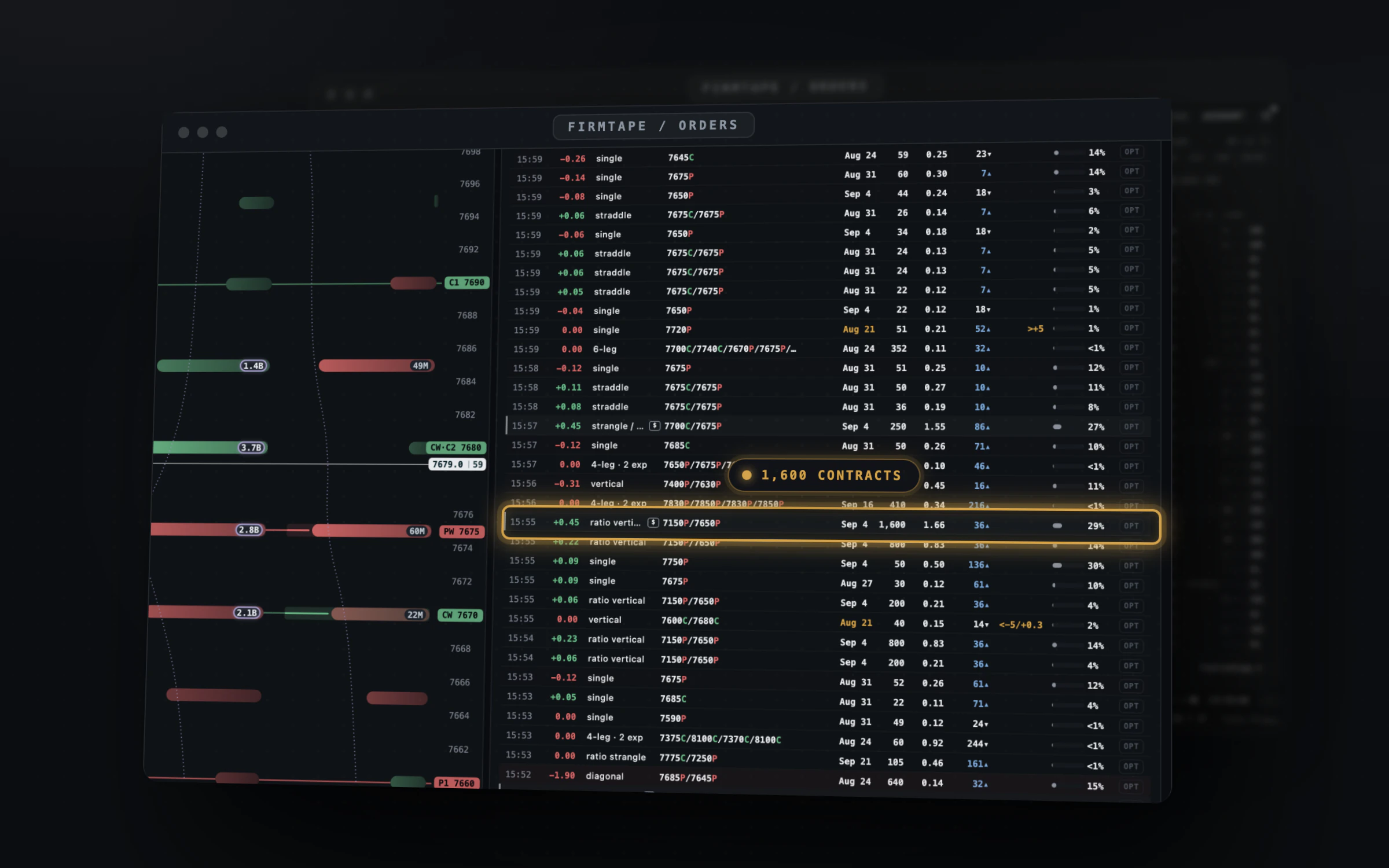
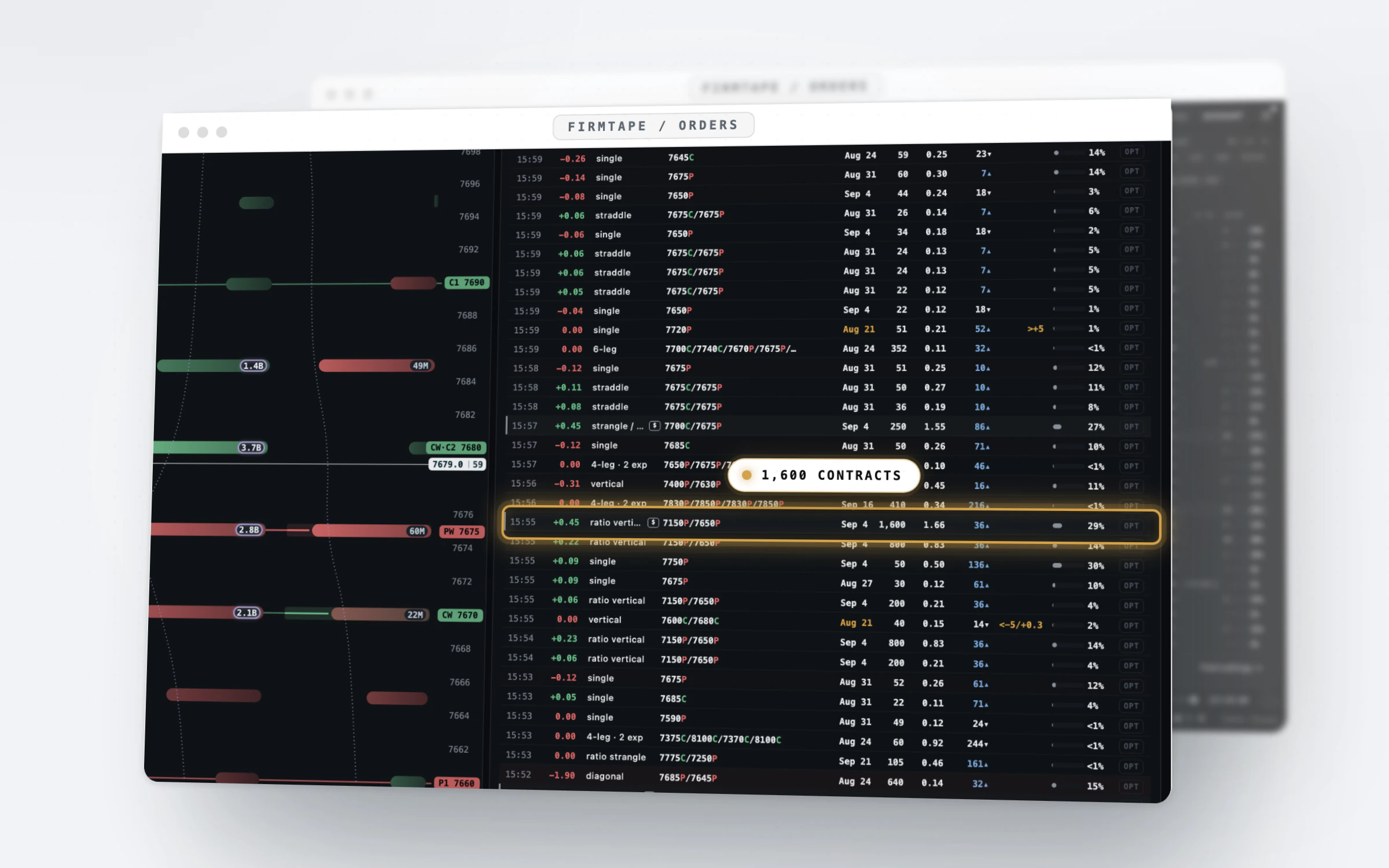
A vertical prints as two legs and a condor as four. ORDERS folds the legs back into one order, names the structure and places it against the measured book at the minute it printed. Beside it, POSITIONS reads the shorts you typed against the same minute: distance in points and expected moves, the large orders near them, the levels around them.
Free on every finished session. Today's ledger, live, and the live POSITIONS check are the ORDERS plan.
The problem
The tape shows prints, and a print is rarely the whole order.
- A large print is often one leg of a spread, so reading it alone gets the size and the shape wrong.
- The biggest premium of the day is rarely the order that moved the dealer book most.
- Your own short strike, the large orders printing near it and the walls moving around it each sit on a different screen.
With ORDERS
One row per order, and one check per side of your position.
Every SPX order above $100,000 of net premium is rebuilt from the tape: legs folded into the parent, the structure named, the gamma it added to the dealer book and its distance from the flip in points and in expected moves. Contract boards rank single contracts, a card tells any contract's day, and POSITIONS counts your own conditions on each short, minute by minute.
How it works
Step by step
-
01 / 04
Open the ledger
Press ORDERS on the toolbar. Each row is one order: the time, the gamma it added to the book, its structure, contracts, expiry, size, net premium, and its distance from the flip.
In the guide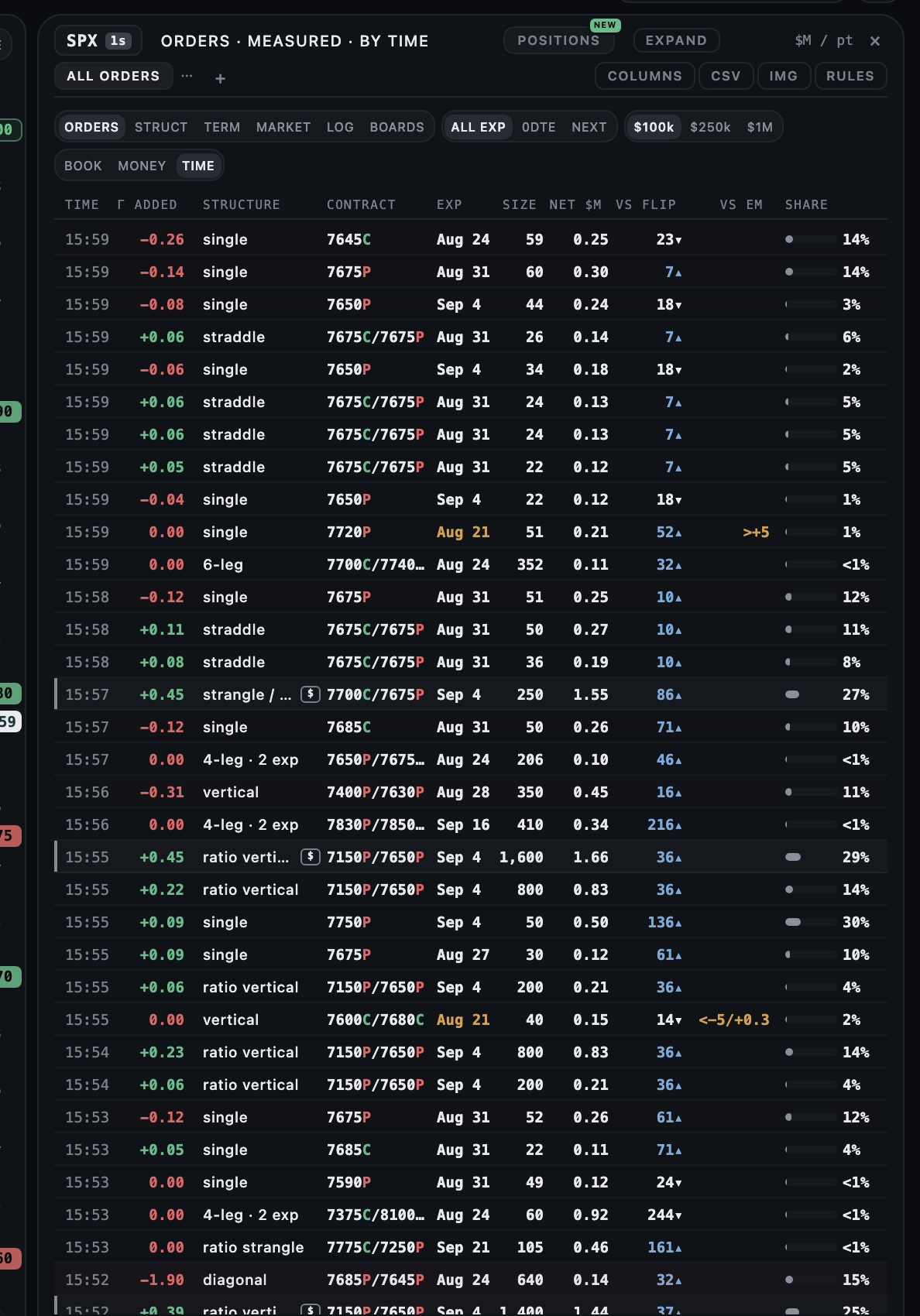
-
02 / 04
Rank the contracts
Press BOARDS and pick TOP VOLUME, TOP PREMIUM, TOP OPEN INT or UNUSUAL VOL/OI, over 1D or 7D.
In the guide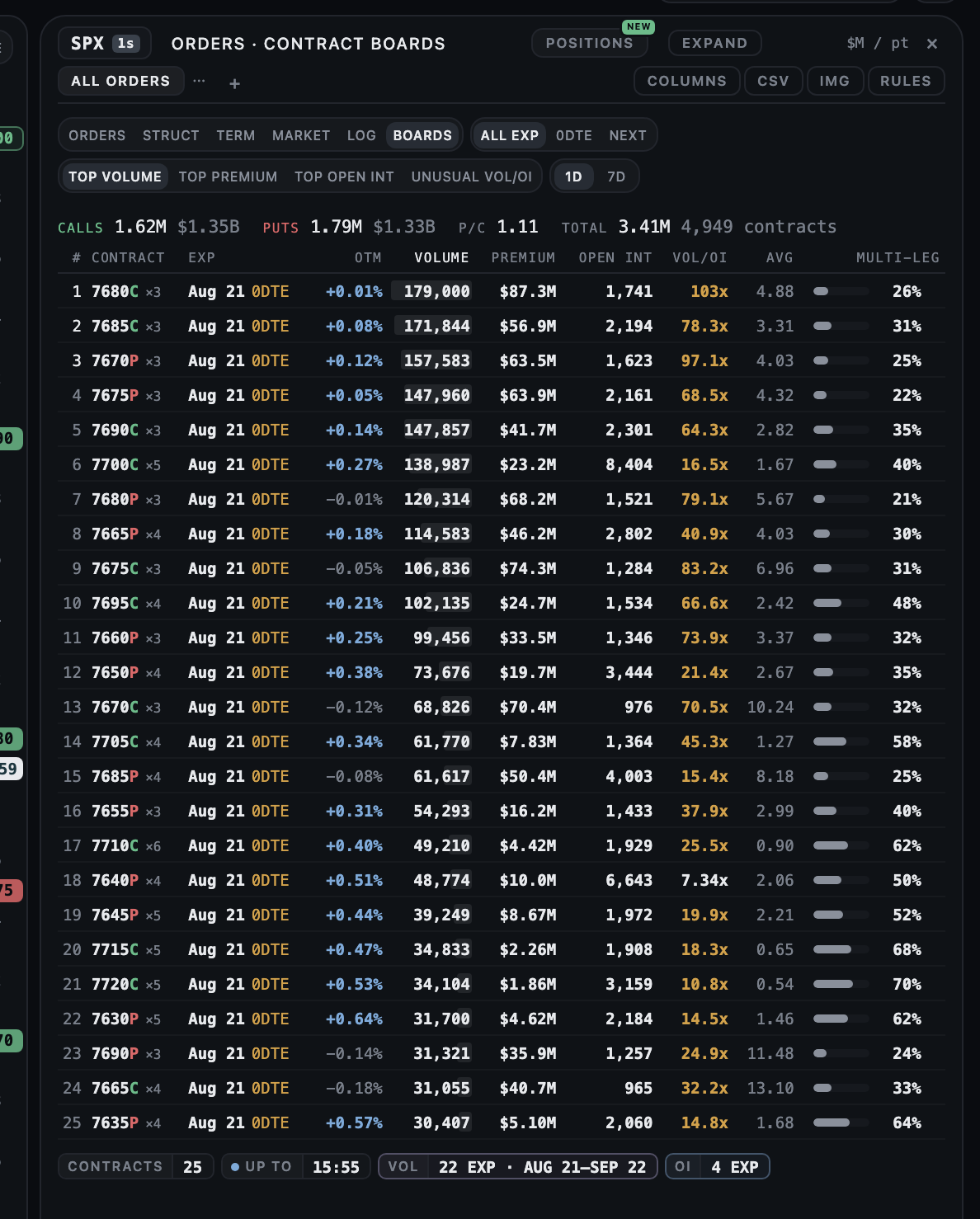
-
03 / 04
Open one contract
Click a board row, an order's leg or a strike on the price scale. The card shows its volume per five minutes, its open interest and three tabs: structures, largest orders and sessions.
Read more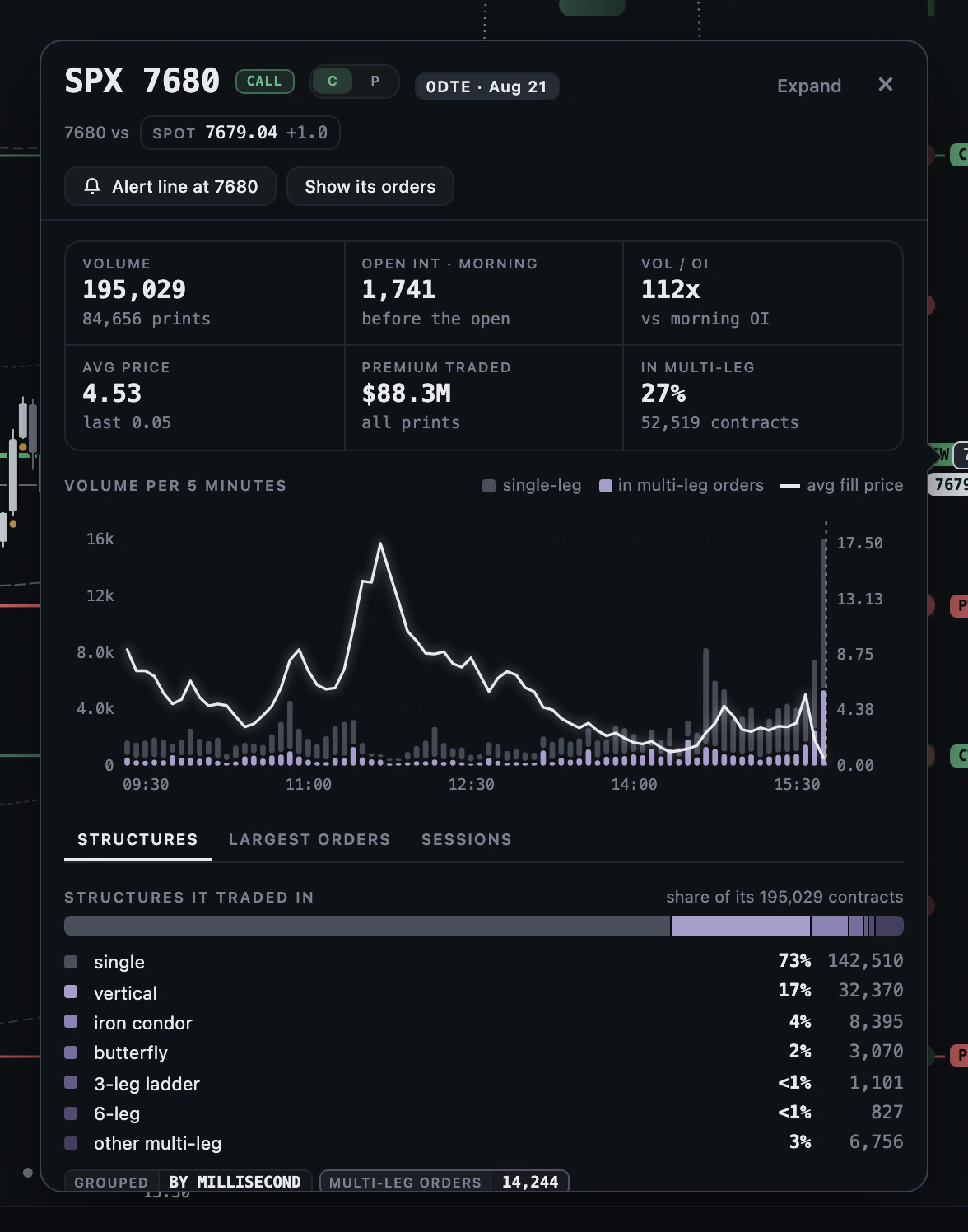
-
04 / 04
Read your own shorts
Press POSITIONS and type the strikes of an iron condor, a strangle or a spread. Each side is read against the minute on screen, and its label is the count of your own conditions that are on.
Read more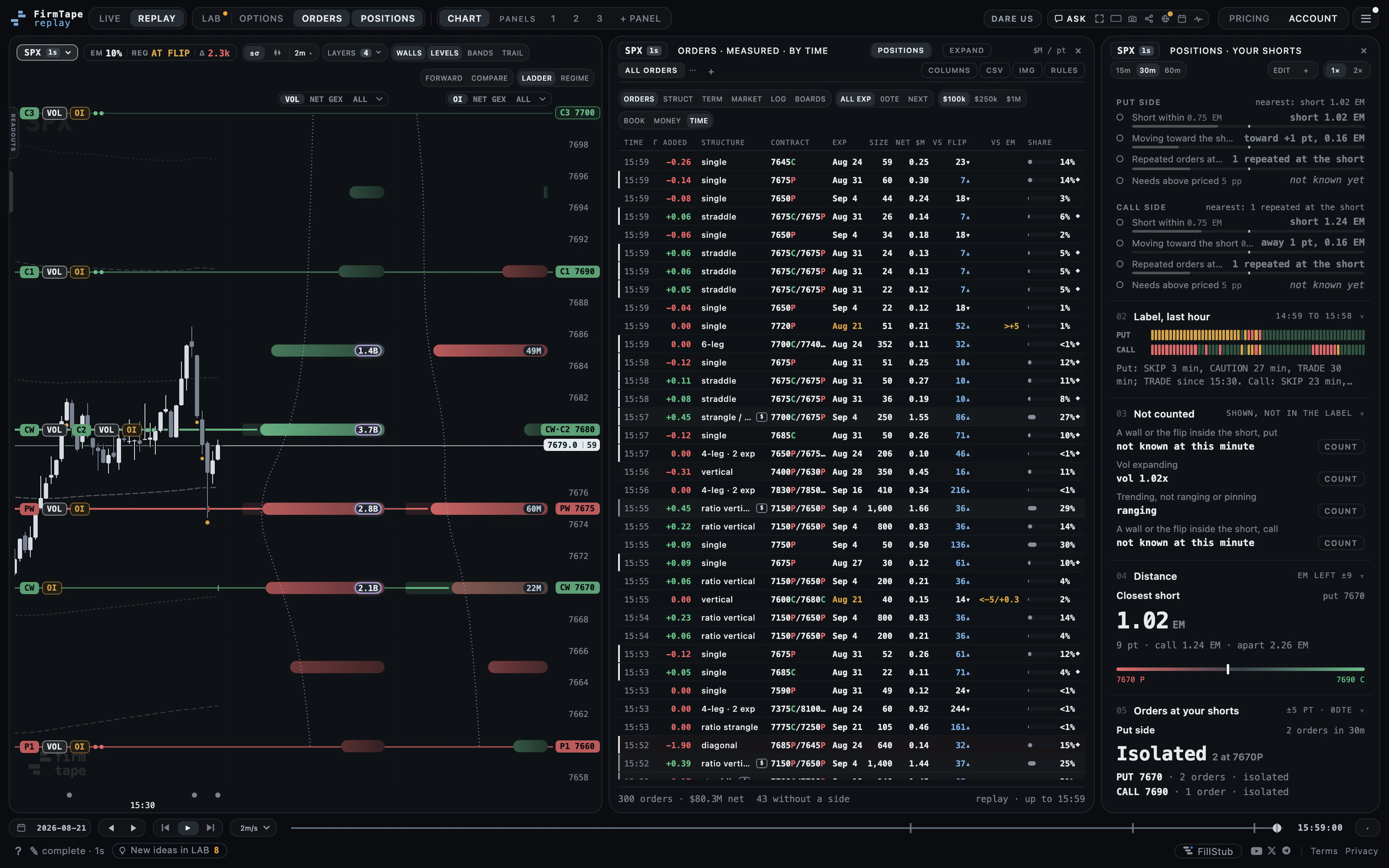
Capabilities
What you can do with ORDERS
Every order, folded and named
Legs back in one row, the structure named, the gamma it added to the book.
In the guideA card for every contract
Volume per five minutes with the average fill, open interest, structures and the largest orders.
Read more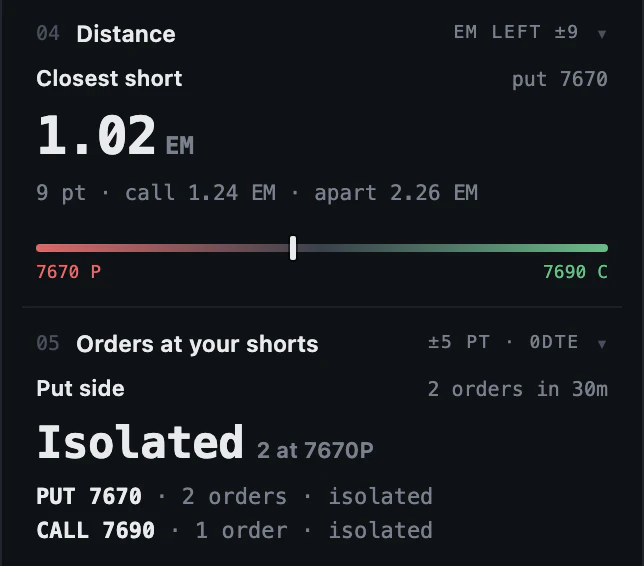
Your shorts, every minute
POSITIONS reads each side of your position in points and expected moves, with the large orders near it.
Read more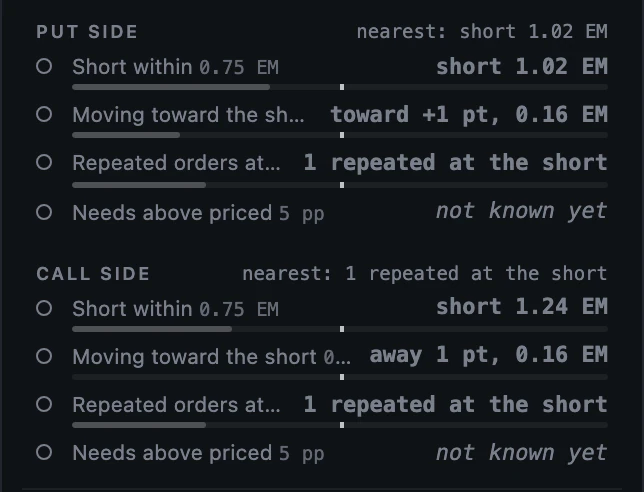
Conditions you set
Each side is tested on your own conditions and thresholds; the label is how many are on.
In the guide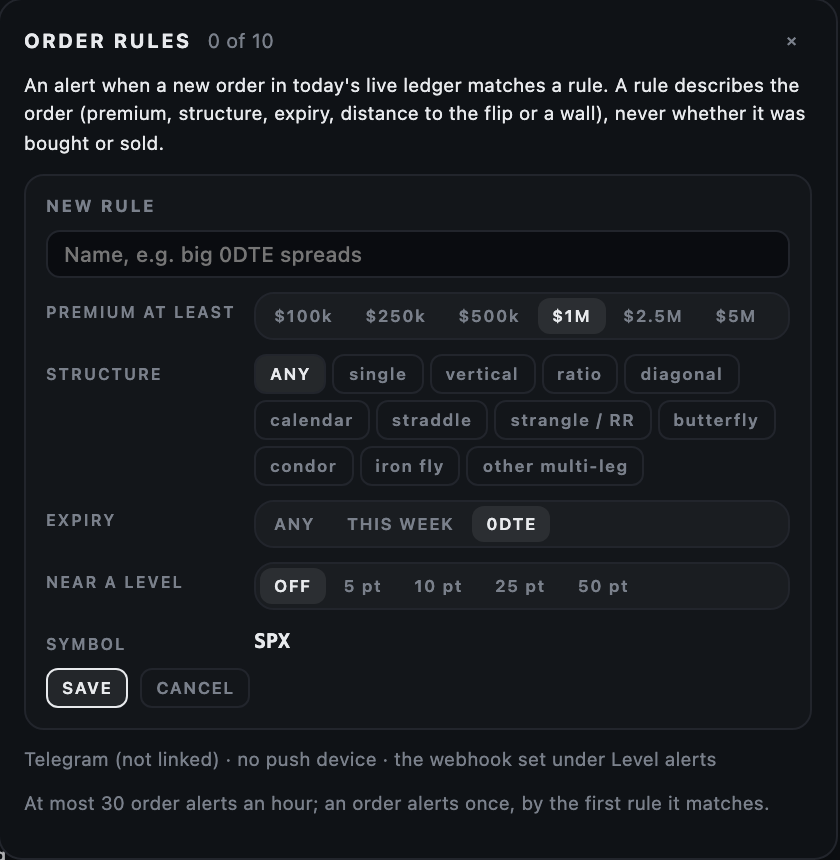
Order rules
Describe the orders you want to hear about; a match arrives on Telegram, your phone or your webhook.
In the guide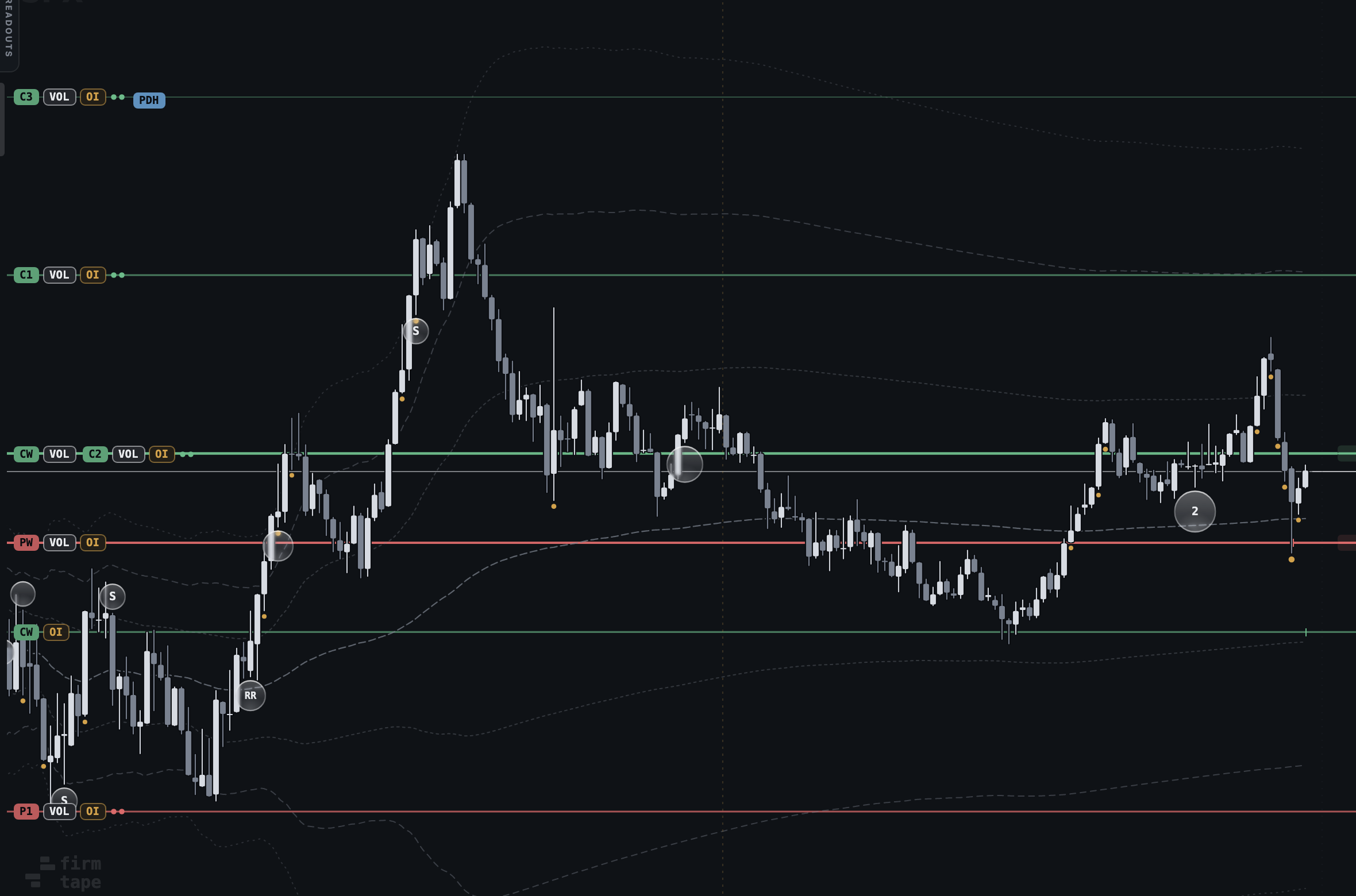
Orders on the chart
The ten largest orders as circles at the minute and price they printed.
In the guideEvery feature
Everything in ORDERS
20 features · 4 groups. Each one is written up in the ORDERS guide.
Watch the prints 10
- The order ledgerRead every large SPX order of the session as one order by pressing ORDERS on the toolbar.
- Orders on the chartSee where the day's largest orders printed by turning on ORDERS in the LAYERS popover.
- Sort and filtersNarrow the ledger to the expiry and size you care about with the filter row's expiry, premium and sort switches.
- STRUCT and TERM viewsSee how the session's size split by shape or by expiry with the STRUCT and TERM views.
- Saved tabsKeep your own views of the ledger by saving the filters, columns and highlights as a named tab.
- Columns and highlightsChoose the ledger's columns and mark the orders you look for with COLUMNS and its highlights.
- CSV and IMGTake the rows on screen into a spreadsheet or a post with CSV and IMG.
- EXPANDFit every column with the chart still beside it by pressing EXPAND.
- A link that opens ORDERSShare a session with the ledger already open by adding ?orders to the terminal's address.
- Order rulesHear about the new large orders you care about by describing them in RULES.
Read a contract 3
- Contract boardsFind the contracts that carried the session by ranking them on BOARDS by volume, premium, open interest or Vol/OI.
- The contract cardRead one option contract's whole session by clicking its strike, a board row or an order's leg.
- Card actions: alert line and its ordersAct on a contract from its card by setting an alert line at its strike or filtering the ledger to its orders.
In your code 1
- Orders API and MCPPull the ledger into your own tools with an Orders API key or the Orders MCP server.
POSITIONS: your own structure, checked 6
- POSITIONS panel and editorCheck your own short options position every minute by entering its strikes in the POSITIONS editor.
- Conditions and the not counted listDecide what counts toward a side's label by setting each condition's threshold and choosing which are counted.
- Label trackSee how each side's label moved over the last hour from the row of minute cells.
- Opening read and label changesGet your position's read at a minute you choose and every time a side's label changes by setting ALERT FROM.
- The POSITIONS webhookWire your position's label changes into your own system by picking WEBHOOK as its channel.
- Entry logRead how the check stood at your entry minute on recent sessions by opening the entry log.
What it gives you
Why it is worth a place on your screen
Orders, not prints
Legs grouped by the millisecond and named by shape, so a ratio vertical reads as one ratio vertical, with one size and one net premium.
Your strikes in expected moves
Each short is placed in points and in expected moves at the minute on screen, so a 14-point cushion reads differently at 10:00 and at 15:30.
The ledger and the archive in one place
Every finished session since January 2024 is free to read in the terminal and on the site, with the same rows today's ledger shows live.
Free on every finished session. Today's ledger, live, and the live POSITIONS check are the ORDERS plan. Plans and prices.
Add to ORDERS
Add to ORDERS: Orders API, Orders Team
Works with
ORDERS with the rest of FirmTape
LIVE: The structure tester
Open any order in OPTIONS with one press: its strikes and rights, ready to read against the book.
LIVE: Where alerts go
Order rules and POSITIONS alerts go to the same Telegram chat, phone and webhook as the level alerts.
REPLAY: The playback bar
On a finished session the ledger stops at the replay cursor, and a contract card moves the replay to the second an order printed.
FAQ
Questions about ORDERS
- Does ORDERS say which side of an order the customer took?
- No. The side of an SPX print is close to a coin flip against the exchange's own record, and between a quarter and a half of the orders carry none, so no row, board, card, highlight or rule reads it.
- Which orders are in the ledger?
- Every SPX order above $100,000 of net premium, with its legs folded into one row. The ledger is SPX only.
- Is the ledger free?
- Every finished session is free to read, in the terminal and on the site. Today's ledger while the session runs is the ORDERS plan.
- Does POSITIONS tell me whether to keep or close a position?
- No. It reports where each short stands against the market minute and how many of your own conditions are on. TRADE, CAUTION and SKIP are your own count at thresholds you choose, never a call by FirmTape.
- When do the contract boards fill?
- Today's boards are rebuilt from the session's tape every five minutes during the session, as of the minute they read; the evening's build replaces them at the archive's full width.
- Can I get an alert on new orders or on my position?
- Yes. Order rules describe the orders you want to hear about, and POSITIONS sends an opening read and then each label change. Both go to the destinations under Account, Level alerts.
- Can I read the ledger from my own code?
- Yes, with the Orders API add-on: the same rows over REST and MCP, documented at /docs/developers/orders.
What it does not do
- It does not say who opened or closed a position, or which side of an order was the customer's.
- It does not cover option roots other than SPX: the ledger and the position check need a tape-signed book.
- It does not place, route or track real trades; a position is a set of strikes you typed, and nothing is sent to a broker.
- It does not forecast whether a short will be reached.
See the orders that moved the SPX book, and read your own strikes against them.
The orders that built the SPX book, a card for every contract, and your own shorts checked every minute